
Print guide
The small printy digitalprint guide for preparing your file:
1. Lay out your document in the same size in which it will be printed.
Do not create multiple uses on a larger format. PDF files with print or view sheets are also unsuitable for printing. It is better to set up individual documents in sequence as single PDF pages or multi-PDF. Lay out your document primarily in a DIN format and avoid a letter format. Do not use black border lines (mourning borders), or register, fold or cut marks.
2. Elements that are printed to the edge of the sheet, in so-called color-drop prints, please provide with 2mm bleed all around.
This means that you should draw backgrounds and images beyond the final format, taking into account the bleed. However, place the letters and important components within the final format with a safe distance of 4mm from the paper edge or fold (for large formats, such as DIN A0, a distance of 10mm). This prevents white borders and ensures that your text information is not subject to the necessary cut.
3. Arrange multi-page documents in the order in which they will be turned through.
Please insert any existing blank pages in the document as well. We will handle the so-called “shooting out,” including inserting a cover sheet into brochures, for you.
4. For double-sided printing, the following applies to pagination: page numbers for right-hand pages, i.e., front pages, are to be placed as odd numbers and either centered or right-aligned.
Left pages, also back pages, are accordingly to be laid out as even page numbers and centered or left-aligned. Chapter beginnings are typically right pages, i.e., front pages, and should therefore be numbered with an odd page number.
5. Open applications from Word, PowerPoint, InDesign, CorelDraw, LaTeX, Affinity, etc. cannot be printed without errors.
Open applications, such as Word and others, appear differently on each computer due to different versions and default settings. Misplaced paragraphs, lines, and images with incorrect font are the unfortunate result (Customer objection: “the print is fine at home”?, Response: “yes, it`s only works at home but not anywhere else”). Therefore, for us, the only alternative for external service providers is the PDF file format, or even better, PDF/X for printing experts! PDFs appear nearly the same on every computer and are reliably reproduced on our high-performance printers as you see them.
6. Convert the Word Office doc to a printable PDF format.
It´s absolutely necessary that you perform a conversion on the computer on which your project runs with the respective application program. For example, open your doc file with your MS Word program. Then click on in the top left corner <Datei> and then select<Exportieren> . Then click on <Adobe PDF erstellen> , or in older Office versions click on <PDF/XPS erstellen>. Then just set the file name and location, and click to generate the desired printable PDF file. After converting your PDF file from your application program, check that all content has been processed and implemented correctly.
7. Don’t trust the color reproduction of your monitor or office printer. Only calibrated professional devices can display colors approximately correctly – expert
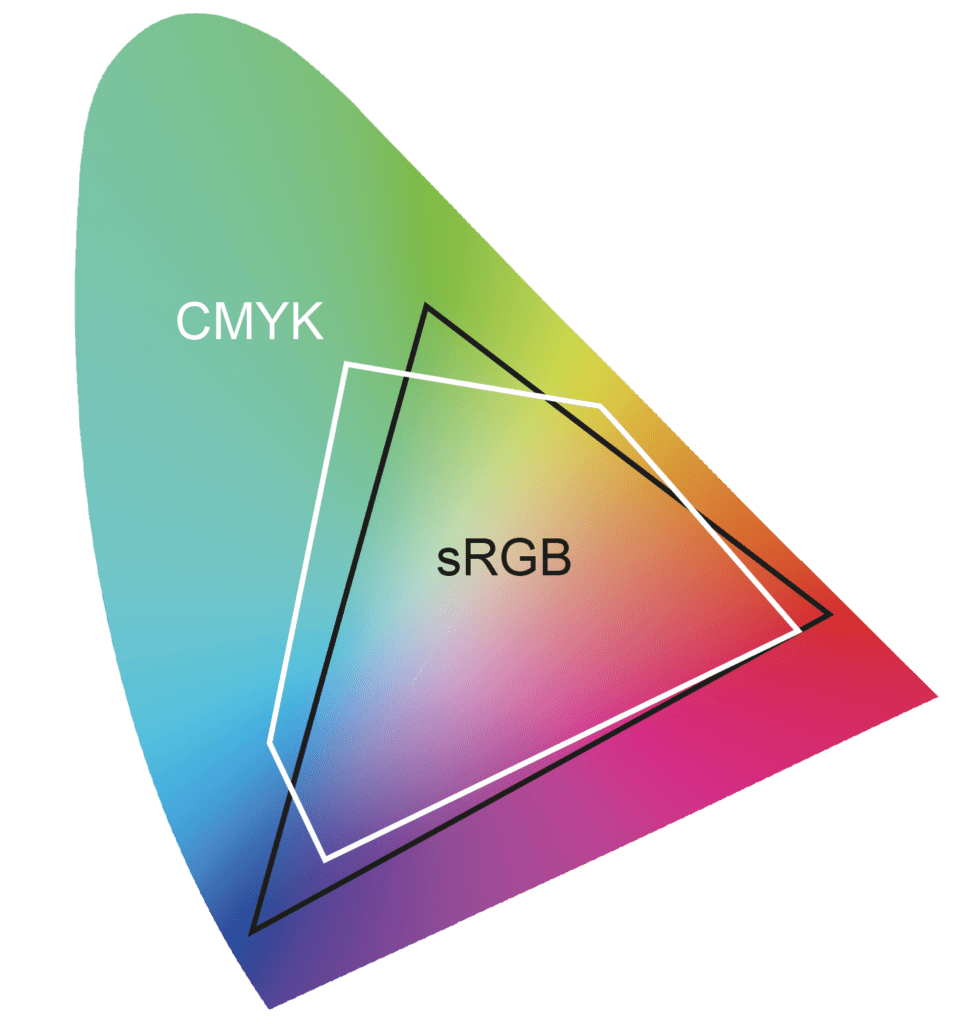
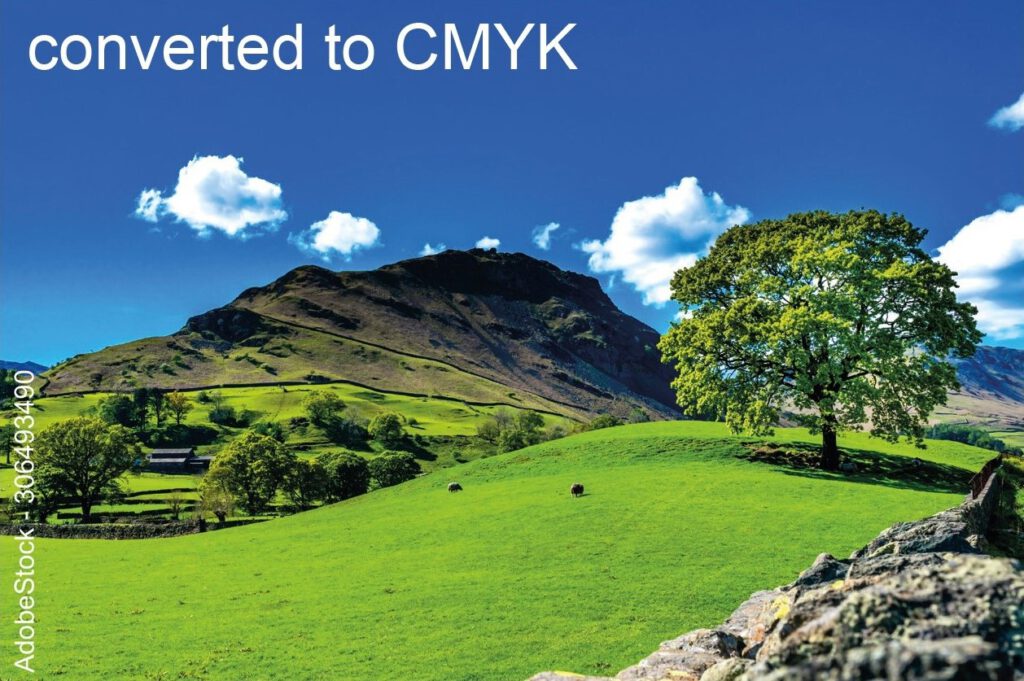
It’s better to have a low-cost preview print created on a high-performance printy digital printer. A brief excursion into the world of colors: on your monitor, you see light colors = RGB (primary colors red, green, and blue). However, light cannot be permanently applied to paper. That’s why RGB light colors are converted to the CMYK color model with the printing inks cyan, magenta, yellow, and supplementary K = black. Both color spaces, RGB and CMYK, are subject to limitations and only capture a very simplified representation of what we actually see in real nature. In particular, the RGB color space is larger than the CMYK space in the blue range.
8. Images and all color representations should not be compressed and should generally be created in CMYK mode – expert
with the ICC standard profile ISO COATED V2, based on the Fogra39 color space. If your templates are in RGB, we recommend leaving the data in RGB and exporting or saving it as a PDF/X-4 file. Advantage: through our print controllers with extended profiles and the possibility of luminous high chroma color reproduction, close to the sRGB color space, we often achieve better results than would be the case with an uncontrolled CMYK conversion using a graphics program.
9. Save your document as a print-ready PDF/X-4 file – expert
In the small format range, we work with Adobe Print Engine Technology APPE. This replaces the outdated PostScript RIPs. The primary advantage of APPE in conjunction with PDF/X-4 is native, secure printing of transparencies. Also, the otherwise necessary, error-prone reduction of transparent objects in your application program is eliminated. However, if transparency is used excessively, APPE may unfortunately result in unpredictable outcomes. Therefore, it is highly advisable to refrain from using Photoshop for elaborate work with countless layers and, consequently, absurdly inflated gigabyte print files. Excessive vector graphics can also cause printing problems (see the checklist for study projects). Please also keep in mind for an optimal printing result that your images and texts have the correct resolution (color and black and white 200-300 dpi for small formats at original size; large formats 150 dpi at original size) for an optimal printing result. All fonts and images must be embedded. The maximum color application of 300% should not be exceeded. Sum of color channels C, M, Y, K = max. 300%.
10. Very thin lines, known as hairlines, can also cause problems in digital laser and inkjet printing – expert
Basically, the following applies: Positive lines (dark lines on a light background) must have a thickness of at least 0.25 points = 0.09 mm. Negative lines (light line on a dark background) must have a thickness of at least 0.50 points = 0.20 mm, based on the original format. Similarly, the overall color saturation of the lines must not be less than 300%, as they would otherwise appear blurred and torn. Also keep in mind that in the case of extreme reductions, fine lines disappear completely in print (e.g. fine lines created in the original DIN A0 format are reduced 35% to DIN A3).
11. Whether high-white glossy, yellowish, natural matte satin, or thin or thick paper, it greatly affects color reproduction.
In short, we have found the following for our digital printing: White, high-gloss printing materials allow for a greater dynamic range = a larger color space = the result is fresh, strong, radiant colors. For rather dull, yet satin or calendered material surfaces (= mechanically smoothed papers), we achieve neutral shades that are in turn good for skin tones and pastel color representations. Materials with a rough surface are unsuitable for digital printing, as the color pigments cannot form a closed layer. Offset printing prefers coated paper or cardboard (= surface refined with binder application). It is only used by printy in the large format inkjet segment.


| PDF und PDF/X | A simple PDF file can often be enough as a print template, and the print will always be beautifully colorful. For error-free, sophisticated, and creative print data creation, we refer to the PDF/X print data formats. You can find noteworthy expert information on this in our small guide from point 5 onwards. |
| PDF without X is primarily not a print data format, but was originally developed as a universal format for exchanging office documents. Only the X variants contain the basic requirements necessary for printing. | |
| PDF/X-1a | allows only CMYK. RGB, LAB and ICC-based colors not possible. Transparencies and layers are also not allowed. In case of doubt, submit a PDF/X-1a. Can usually be processed on all devices, without transparent representations and RGB-based colors. |
| PDF/X-3 | allows RGB, LAB, and ICC-based colors in addition to CMYK. Transparencies and layers cannot be displayed. |
| PDF/X-4 | allows RGB, LAB, and ICC-based colors in addition to CMYK. Transparencies and layers are also allowed. Offers great benefits in conjunction with APPE. |
Considerations before printing
Your incoming PDF print data will be carefully checked for completeness and corrected if possible.
Use our checklists in advance in case of doubt for: